

______________________________
Guest post by Seth Resler of Jacobs Media StrategyFrom time to time, I discover a way to do something that I don't immediately understand the practical use for. In that spirit, here's a tutorial for something that no radio station may actually want to do…Spotify has recently introduced the ability for users to add specific podcast episodes to playlists. This means that in addition to letting users create a collection of their favorite songs, they can now also do the same with podcast episodes. They could even mix the two.This raises an interesting possibility: Anybody can now create their own radio show by combining episodes of their own podcast with songs on a Spotify playlist if that podcast is broken into “DJ breaks” that are designed to be used in between tunes.Until now, this has been a challenge. There are nearly insurmountable hurdles to using popular music in podcasts (though PodcastMusic.com hopes to change that next year). But now, it's possible for the average joe to play DJ with actual songs. Here's how you can do it:1. Create a podcast with a single destination: Spotify.
Normally, when you create a podcast, you take the RSS feed from your hosting company and submit it to as many directories as possible: Apple Podcasts, iHeartRadio, Stitcher, TuneIn, etc. In this case, however, we're going to create a podcast with only one destination: Spotify.2. Upload each “DJ break” as an episode.
Record a series of short “breaks” — introductions to each song on the playlist — as separate audio files. Upload them to your hosting service.3. Create a playlist in Spotify and add your songs.
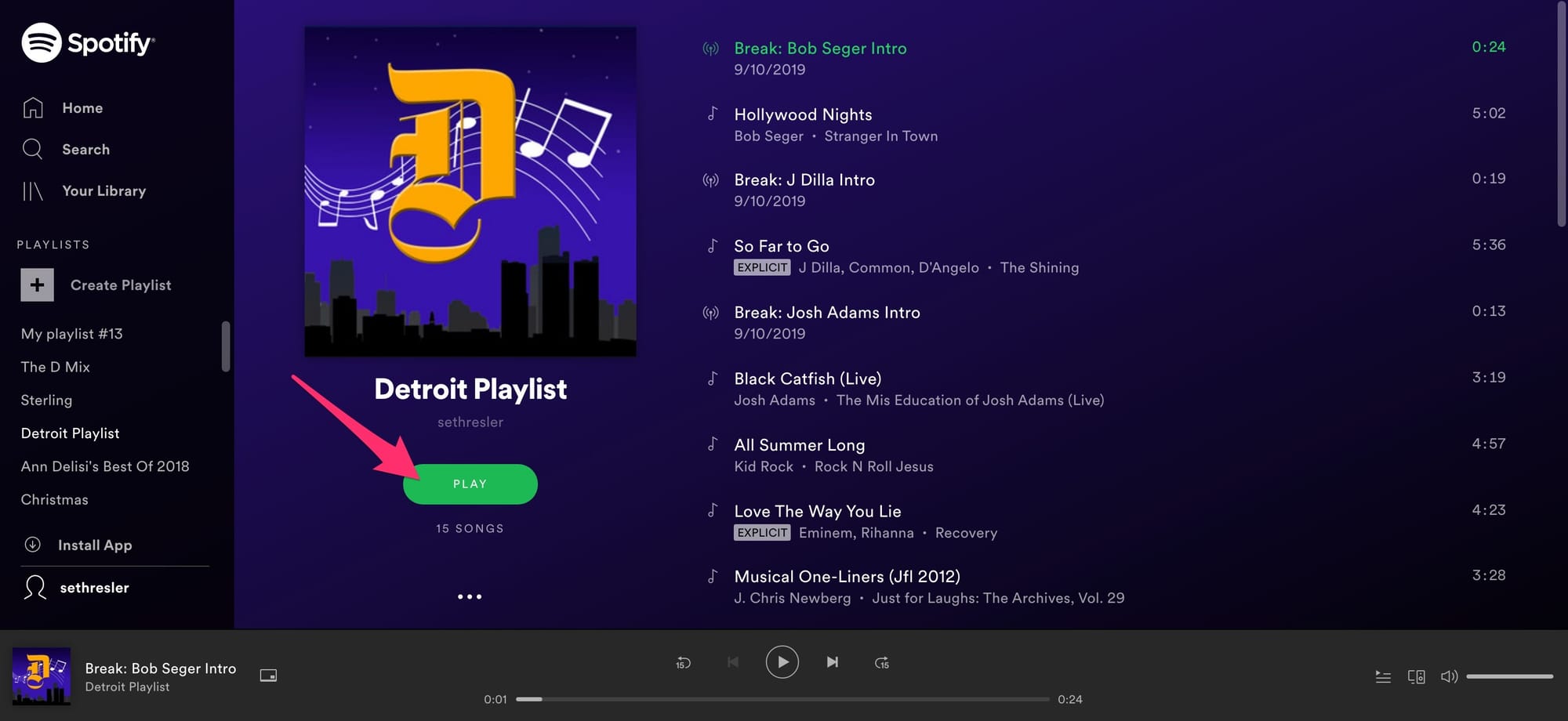
In Spotify, go to “Your Library” and click “Create Playlist.” Name your playlist. You can even add artwork and a description to your playlist. (I found this easier to do using Spotify's desktop app.)4. Add your podcast episodes to the playlist.
Click on the “Search” button and search for your podcast. Click on the three dots next to each episode, then add each of the episodes to your playlist.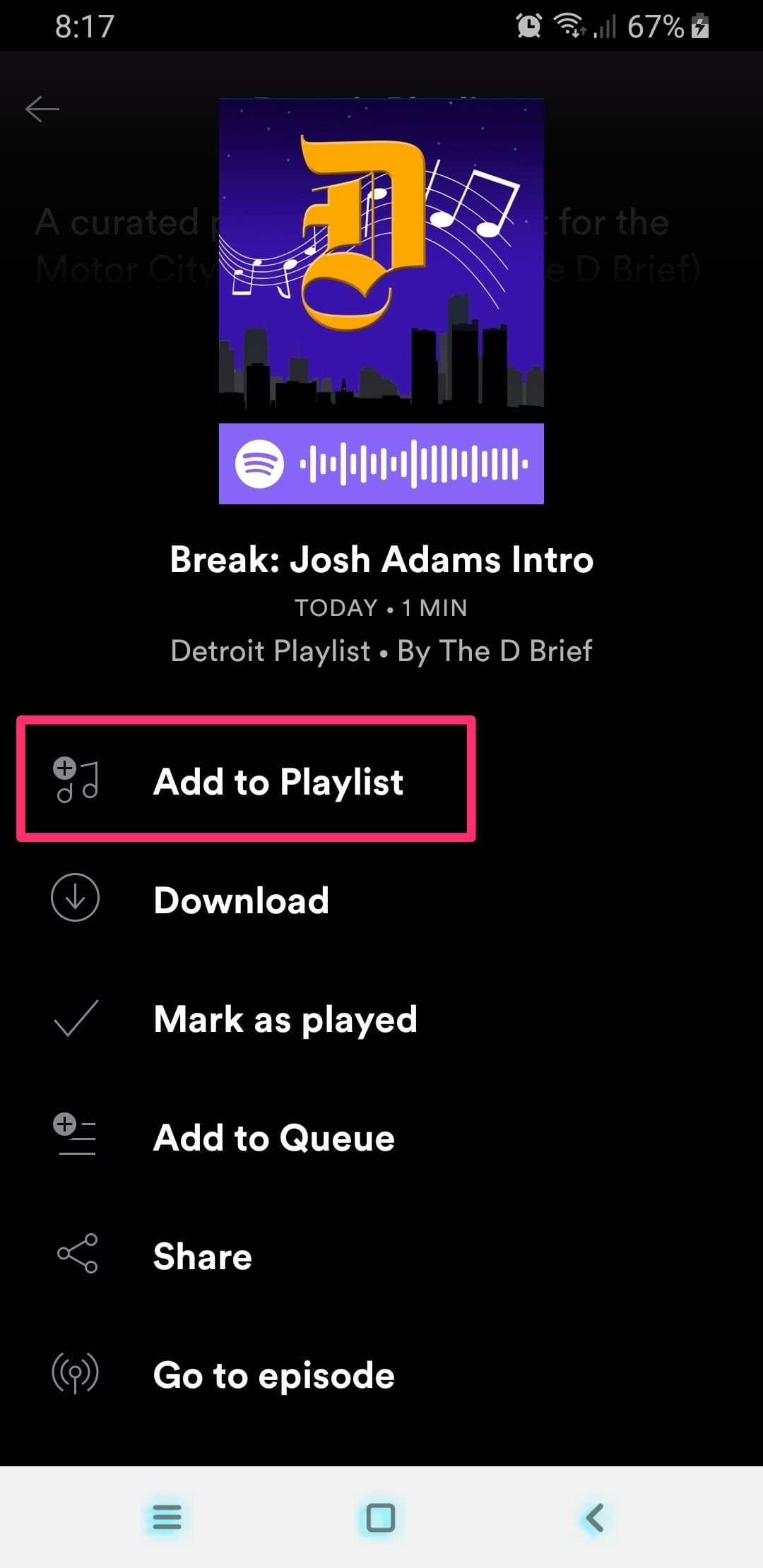
5. Sort your playlist.
Click on “Your Library” and then click on your playlist again. Click the three dots at the top of the screen and select “Edit Playlist.” (Oddly, you don't want to sort your playlist by clicking “Sort Playlist.”) You can change the order of the songs by grabbing them by the three lines and dragging them into the order you want.
6. Make your playlist public.
Return to your playlist, click the three dots in the top right corner, and click “Make Public.” Now, anybody with Spotify can access your playlist.7. Redirect with a vanity URL.
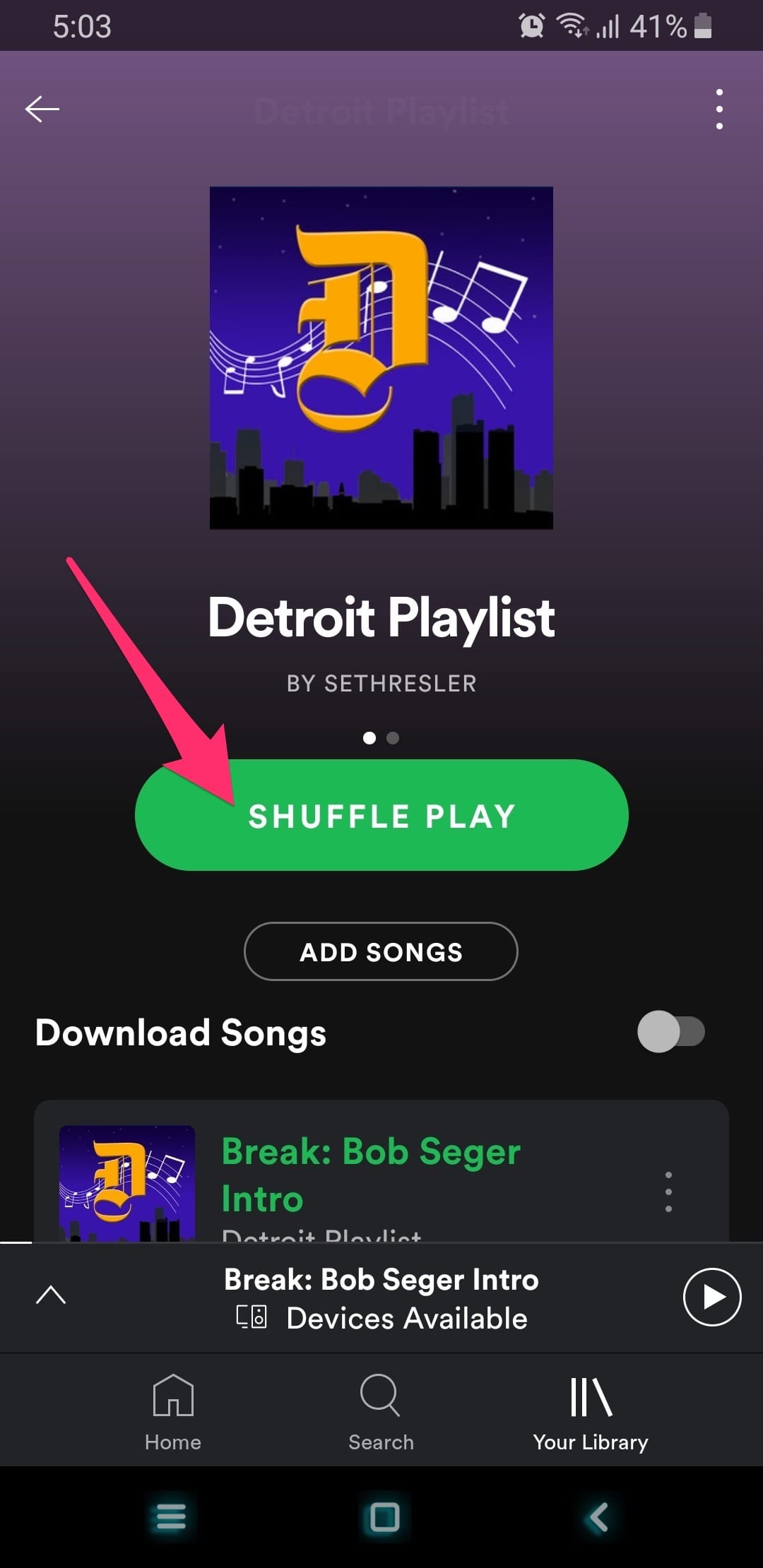
Find and copy the link to your playlist. In the Spotify mobile app, you click the three dots in the top corner of the screen, click “Share Playlist,” then click “Copy Link.”Register a memorable domain name (I used “detroitplaylist.com”) or use a sub-directory of your existing website (such as “wkrp.com/localmusicshow”). Redirect this URL to the Spotify playlist link that you copied.Now, you've got a convenient link that can be shared and promoted. For example, I have created a Spotify playlist at http://detroitplaylist.com.You can imagine updating this playlist on a daily, weekly, or monthly basis to create new “radio” shows.Complications
The ability to create playlists this way relies on some newly unveiled Spotify features, and is not using them in the exact way that they were intended, so it doesn't work perfectly. Here are some of the challenges I ran into:- The process is slightly different depending on whether you're using the desktop version of Spotify or the mobile app. In some cases, I had difficulty figuring out how to do every step of this on one device or the other, and had to rely on a combination of the two. That may change over time.
- The playlist doesn't sync instantaneously between the desktop and the mobile app. Sometimes, I would make a change in one and not see it reflected in the other, which is problematic when you're relying on both to get the job done.
- While the desktop version of the app shows a big green “Play” button, the mobile app version's primary call to action is a “Shuffle Play” button. Of course, if people shuffle the songs, the DJ breaks will lead into the wrong songs, defeating the purpose of the playlist.