

During the COVID-19 pandemic, livestreaming concerts from home, your building's rooftop, the outdoors, and everywhere else, became a much-needed trend to keep culture moving forward and audiences entertained. Nowadays, there's less of a mass need for online concert viewing.
But, we would argue that's almost what makes it that much more crucial, both for artists and venues. And Volume is one platform that's gone all in on providing tools, assets, and capabilities for anyone looking to join them to bring digital live music to mass audiences.
According to Music Ally, Volume livestreamed over 2,000 concerts in 2025 and is on track to do close to 3,000 this year. With both free and paid ticketed options, customizable to your objectives and audience engagement goals, this is the perfect time to stream your concerts digitally.
Let's talk about why.
For Venues
One of the biggest advantages livestreaming offers venues is simply the ability to expand one's audience far beyond the room itself. Traditionally, a venue’s reach is limited by geography and capacity: once the room is full, that’s the end of the revenue opportunity. Livestreaming changes that equation entirely. A show that normally reaches a few hundred fans locally can suddenly be watched by viewers around the world.
Livestreaming can also unlock new revenue streams without increasing operating costs. Venues can sell virtual tickets to sold-out and one-off shows, offer pay-per-view access, or host donation-based streams. Because the event is already happening in the room, these digital tickets represent incremental income rather than additional overhead. Hybrid events (where both physical and online audiences participate) allow venues to monetize demand that exceeds their seating capacity.
Finally, livestreaming helps venues capture valuable fan data and build long-term relationships with their audience. Free livestreams in particular can drive email signups and audience engagement, creating a growing database of fans who can be notified about future shows.
For Artists
For artists, livestreaming concerts provides a powerful way to connect with fans who can’t physically attend shows. Touring is geographically and temporally limited, which means even popular artists may only reach certain cities or regions. Livestreaming removes those barriers, allowing fans anywhere in the world to participate in a live moment as it happens.
Livestreams also create opportunities for deeper fan engagement and community building. It can help your online audiences feel directly involved in the experience rather than simply watching passively, and can strengthen the emotional connection with fans—turning casual listeners into loyal supporters who follow future releases, shows, and projects.
Perhaps most importantly, livestreaming enables artists to experiment creatively with new performance formats. A livestream doesn’t have to replicate a traditional concert; it can be a stripped-down acoustic set, a studio session, a behind-the-scenes songwriting performance, or a fan Q&A mixed with music.
Check out Volume.com to learn more.
How to Set Up a Livestream on Volume
1) Set up your Volume account and channel page
- Create / log into your Volume.com account via the sign-up page.
- Personalize your profile page (banner, bio, links, featured content).
2) Decide how fans will access the stream (free vs paid)
Volume supports both free and paid streams, and the choice is typically made per event. Go free when you want maximum reach + email/contact capture. Go paid when demand is high (sold-out show, special event, exclusive set, etc.).
3) Create your event page (the page you’ll send fans to)
What this looks like can vary depending on your account type and whether you’re doing a single show, a series, or a multi-day event—but the goal is the same: create a page that shows title + date/time + ticket/access options.
A Volume ticketed event page typically displays the event name, date/time, and ticket options/prices (example shown here).
Best practice before you publish/share the link:
- Add a clear title (“Live from ____”)
- Confirm your timezone
- Upload a strong poster/thumbnail
- If paid: set price and ticket options (single show vs multiple shows, if applicable)
4) Choose your broadcasting method
Volume’s creator guidance points to two common paths:
- OBS on desktop (most common for pro setups)
- Mobile RTMP app (fastest for simple streams)
5) Get your Volume stream key (critical step)
- Log in to Volume.com.
- Click “Go Live” at the top of the screen to reach your broadcast page.
- Copy your RTMP/OBS stream key (you’ll paste it into OBS or your mobile RTMP app).
6A) Desktop/Laptop: OBS setup
- Download and open OBS.
- Add your sources: Video (camera / capture card) and/or Audio (interface / mic input, or audio capture as needed)
- In OBS Settings → Stream:
- Choose Service: “Volume.com”
- Server: Default
- Paste your Volume stream key
- Set your output quality (starting point):
- For 1080p, Volume’s guide references ~5000 kbps (5 Mbps) as a recommended bitrate, then adjust based on your upload bandwidth.
6B) Mobile/Tablet: RTMP setup
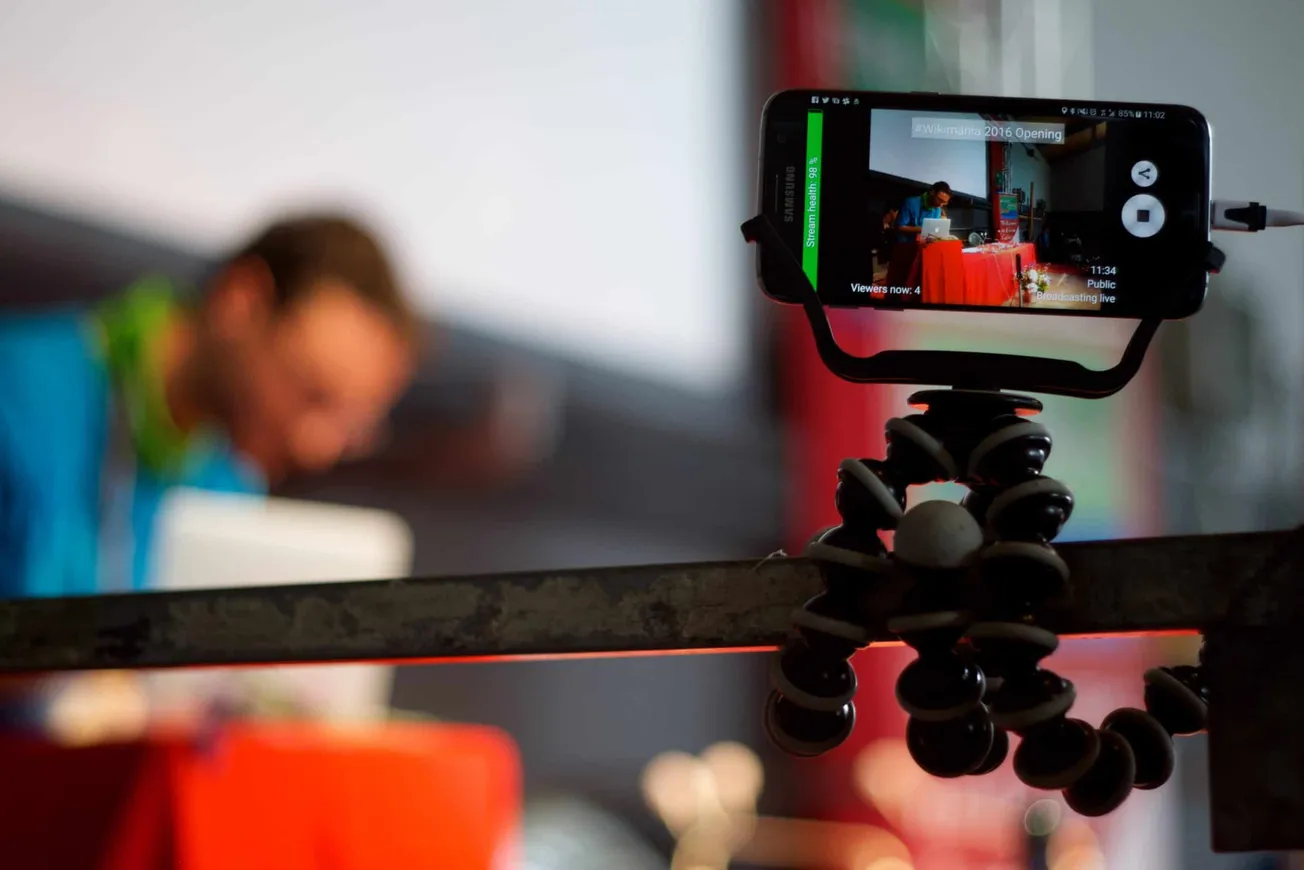
- Install a mobile RTMP streaming app (Volume’s example is Streamlabs).
- In the app, add a Custom RTMP destination:
- URL:
rtmp://live.volume.com/live-origin - Stream key: paste the key you copied from Volume’s Go Live page
- URL:
7) Do a private “soundcheck” stream before doors
A clean workflow is:
- Start your stream in OBS/mobile.
- Confirm the Volume event page shows you as live.
- Listen for clean vocal levels, no clipping or distortion, and acceptable latency (it’s okay if it’s not instant; it just needs to be stable).
*If you can, have a friend watch on a different network (cellular) and text you what they see/hear.
8) Go live for real (and run the show)
- Start streaming from OBS/mobile. Open your Volume page so you can monitor engagement, and interact with chat during the show (or assign a moderator).