

Marketing an upcoming tour can be a complicated endeavor, with a lot of moving parts.
You want to make artwork in the form of a tour poster, shareable graphic, or even print flyers. You may want to update your band photos. You need to make sure up-to-date ticket links and event info is available across all your dates, on both your website and promoter pages. You have to put together a campaign timeline of social media posts, a press announcement, possibly also get in touch with specific media outlets to do exclusives. You probably also want to make sure YouTube and social platforms are full of live videos of your past performances, which can be shared throughout the campaign.
But one element is both the most crucial, and the easiest to check off the list. And that's getting your tour dates to appear where your music is streaming. That's because you want to make sure you're capturing fan attention at the moment they choose to listen.
All of that can be done through Bandsintown For Artists.
It's a simple integration that makes it easy for artists to amplify their events to streaming platforms instantly, including visibility to Spotify’s 700 million monthly listeners worldwide.
Here's how.
How to add your events to Spotify
If you do not have a Bandsintown for Artists account, sign up for free and claim or create your artist page.
From your Bandsintown for Artists dashboard, click on Profile and add your Spotify artist profile URL (learn how to find your Spotify artist profile URL).
Next, visit the Events section and make sure that all of your upcoming shows are listed accurately — this is the data Spotify uses to retrieve your events. There is no limit or restriction to the number of events that can be displayed. If you notice that one of your upcoming events is missing, add your event.
Where to find your events on Spotify
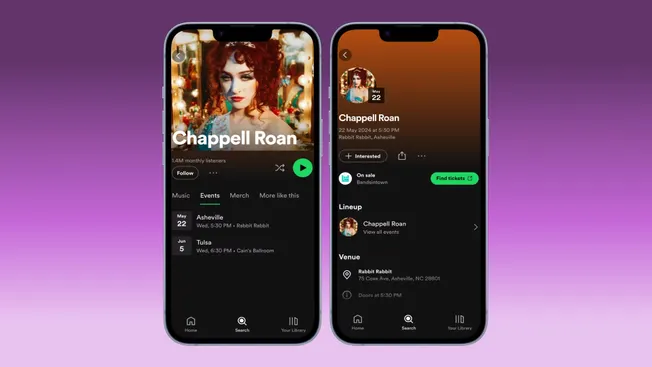
Events listed by artists on Bandsintown for Artists will appear on your Spotify artist profile and in fans’ personalized Live Events feed.
How to edit your events featured on Spotify
From the Events section of your Bandsintown for Artists dashboard, you can edit your event.
Changes to your events in Bandsintown for Artists will automatically appear on Spotify within 24-48 hours. To submit an urgent modification request, email artistsupport@bandsintown.com.
If changes you made to an event on Bandsintown for Artists are not showing up on Spotify, ensure your Spotify artist profile URL is linked in your Bandsintown Artist Profile and changes to your events have been made for at least 48 hours. If changes are still not showing, email artistsupport@bandsintown.com.
PLEASE NOTE:
- Some events on Spotify are pulled from direct integrations with other ticketing partners. See an updated list of Spotify’s ticketing partners here. If your event is ticketed by one of the ticketing partners listed, visit the ticket provider directly to make changes or submit a support request to Spotify via this form.
- Festival events will display only the start date of the festival, not the entire range of dates.
Ticket links on Spotify
Events listed on Spotify include a link that may point either straight to the ticket provider’s website or to the corresponding Bandsintown event page.
How to find your Spotify artist profile URL
From your Spotify artist profile, click the 3 dots or right-click your artist name, select Share, and select Copy link to artist. For help finding your artist profile, search for your artist name together with your track/album name.
Your Spotify artist profile URL should have a format similar to this:
https://open.spotify.com/artist/1URnnhqYAYcrqrcwql10ft
+Read more: "How to Promote Live Shows and Tours"